Showing posts with label internet explorer. Show all posts

Wednesday, December 03, 2008

Speedup Your Browser

Believe it or not, there are simply things you can do to speed up your browser. The default settigs on most browsers are not optimized for fast internet connections (e.g. dsl, cable or satellite). This article details how you can change those settings to speedup your browser. In this article, I will cover Internet Explorer 7.0, Mozilla Firefox and Opera 9.6. I can not empathize enough that you should create a restore point if something goes wrong you can undo any changes.

Internet Explorer 7.0

Microsoft’s Internet Explorer 7.0 is a vast improvement from version 6.0; however, they left the default maximum number of connections per server to a measly 2. Theoretically, the more connections a browser has with a server, the faster the rendering of the webpage. However, there are limits and too many connections can be counterproductive. If you have a fast internet connection (i.e. dsl, cable or satellite), you can increase the maximum number of connections to a more reasonable 8. If you have fast cable or satellite, you can even bump that up t o 10. In order to change the default setting, you will need a single free third party program called “IE7 Pro.” I love this little program. Its adds so many more features to IE 7, including: ad blocking, proxy settings, mouse gestures and many more fun things. For more info about the problem, read Lifehacker’s piece on the program.
  1. Download IE7 Pro and install it.
  2. Once installed, start Internet Explorer.
  3. On the menu bar, click on “Tools.”
  4. Scroll down and select “IE7Pro Preference.”
  5. On the left column, select “IE Settings.”
  6. Under “Max connections to server,” increase the number to 8 or 10.
  7. Click [OK] and you are finished. Enjoy faster browsing.

Firefox 3.0x

Mozilla Firefox 3.0 requires a little more work in order to speed it up but don’t be intimidated. There is no third party software or add-on you need in order to make the necessary changes.

  1. Start Firefox and, in the address bar, type “about:config” without the exclamation marks.
  2. Next, click [I’ll be careful, I promise!].
  3. In the “Filter box” enter “network.http.max-connections” without the exclamation marks.
  4. Right click the entry and select “Modify.”
  5. In the new dialog box enter “40” and click [OK].
  6. Next, right click “network.http.max-connections-per-server” and select “Modify.”
  7. In the new dialog box enter “32” and click [OK].
  8. Next, right click “network.http.max-persistent-connections-per-poxy” and select “Modify.”
  9. In the new dialog box enter “16” and click [OK].
  10. Right click “network.http.max-persistent-connections-per-server” and select “Modify.”
  11. In the new dialog box enter “8” and click [OK].
  12. Right click “network.http.pipelining” and select “Toggle.” The entry should change from “false” to “true.” (see note at the end of this article)
  13. Restart Firefox.

Opera 9.6

Opera 9.6 is one of the best browser I have tested. It’s fast and feature rich. Many of the features found in Firefox and IE have long been available in Opera, such as: mouse gestures, tabs, integrated RSS reader, integrated e-mail and the list goes on. There are some minor tweaks you can make to speed up this already blazing fast browser.

  1. In the menu bar, click on “Tools” and scroll down to “Preferences….”
  2. Click on the “Advanced” tab.
  3. In the left column, select “Network.”
  4. In “Max connections to server,” select “16.”
  5. In “Max total connections,” select “32.”
  6. Next, in the left column, select “History.”
  7. In “Check documents,” change the default to “Every 10 minutes.”
  8. In “Check images,” change the default to “Every 5 hours.”
  9. Click [OK] and restart Opera.

Note: For those curious about pipelining and how it speeds up your browser, read this article written by Mozilla.

Saturday, February 03, 2007

Make Firefox Look Like Internet Explorer :: Mozilla Stuff :: JohnHaller.com

Make Firefox Look Like Internet Explorer :: Mozilla Stuff :: JohnHaller.com

Some of you may have heard of John Haller. He is the creator of the portable versions of both Firefox and Thunderbird. In a strange move, he has written a guide on how to customize Firefox user interface to look like Internet Explorer. I am a little bewildered. I was under the impression that people switched to Firefox because they wanted get away from Internet Explorer. Perhaps, he wrote the guide in order to make the process of switching from Internet Explorer to Firefox less intimidating. Regardless, it is an interesting guide.

Saturday, January 13, 2007

Internet Explorer 7 a major improvement but still lacking some features

Don’t get me wrong. I agree Internet Explorer 7 (IE 7) is a vast improvement over its predecessor but I still feel that Microsoft failed to include what I consider some essential features – many features found in its competitors. When I say competitors, I am referring to Mozilla’s Firefox and Opera web browser. Here are some things I would have wanted to see included in IE 7, including: ad blocking, download manager, spell checker and mouse gestures.

I understand that many websites host ads in order to support themselves. But, I am not very fond of viewing a website where 50% of the screen is filled with flash animation, sponsor links, marquees and ads for Viagra. At best, it clutters the webpage and, at worst, a visitor might inadvertently click on a sponsor link which leads them to a drive by download site. There are a number of free third party software which adds content blocking. I recommend CyberGuard’s Webwasher Classic. Webwasher cleans a webpage of its banners, animations, scripts and popup windows. As an added bonus it provides excellent cookie management – users can filter out third party cookies. There are other free add-ons, including: IE7Pro and Reify’s Turnabout. Both of these products integrate themselves in to IE 7 and add itself to the menu bar.

Have you ever started a download and, just as it was 99% completed, you lost the connection to the Internet? You ended up losing everything and having to start from scratch. Well, you don’t ever have to suffer this tragedy again. Download managers can speed up downloads as well as resume downloads which were inadvertently disconnected. Both Firefox and Opera come with their own download managers. In addition, both web browsers can enhance their download managers with add-on (e.g. Firefox’s FlashGot extension). Internet Explorer 7 does not have its own download manager but there are a number of free download managers which can integrate themselves in to IE 7. Even better, most of them have click tracking. By just clicking on a download link, the download manager automatically launches and begins downloading. I recommend using Free Download Manager, a free third party add-on with no adware or any other non sense. Other good alternatives include: LeechGet, GetRight and WellGet. Both LeechGet and WellGet are freeware while GetRight is shareware. WellGet is no longer being developed.

I think many web users under appreciate the value of a good spell checker. It comes in handy when you want to write a comment for a post or write a message. Firefox 2.0 is the first version to offer an integrated spell checker. In the case of IE 7, users can install ieSpell, a free add-on which provides spell checking just a click away.

Mouse gestures allow a user to navigate the web without using the navigation toolbar. Usually, a user holds down a predefine mouse button and drags the mouse. For example, holding down the right mouse button and dragging to the left reloads the previous webpage. Another example, holding down the right mouse button and drawing a line through a link opens the link in a new tab. Both Firefox and Opera have a mouse gesture feature. In Firefox, you need to add the mouse gestures extension while Opera has one built in. IE 7 users can also enjoy the benefits of mouse gestures by using Unhsolution’s Easy Go Back.

IE 7 has a decent RSS reader but users can install Windows Live toolbar which adds greater RSS feed discovery and management. In addition, Windows Live toolbar has a decent auto form filler. My favorite Windows Live add-on is Onfolio; it allows users to save cache copies of web content on to the hard drive for offline viewing. Users can create folders to organize these “clippings.”

In conclusion, IE 7 is a vast improvement over IE 6 – it only took Microsoft 5 years to develop – but there is room for improvement. There are a number of third party add-ons which can improve on an already decent web browser.


Saturday, December 16, 2006

Microsoft speeds up phishing shield for IE 7

Microsoft speeds up phishing shield for IE 7

As many of you know, the new Internet Explorer 7 sports a new anti phishing feature. Unfortunately, with the feature turned on, there is a significant delay in loading a webpage. This is in large part due to frames in the webpage. This past Tuesday, Microsoft quietly released a patch to correct this flaw. The patch was not part of the 7 security patches released on Patch Tuesday. Instead, you need to manually download and install the patch. To download the patch, users will need to go through WGA validation process. Microsoft has set up a bulletin for the patch (link)

Sunday, November 12, 2006

Webpages Not Loading Correctly in Internet Explorer 7. How to Fix the Problem.

Internet Explorer 7 has been released to the public for several weeks now. Unfortunately, there are numerous complaints from IE 7 users that their favorite webpages are not loading correctly. Why? The answer is disturbing. It seems with all the time put in to updating IE6 to IE 7, Microsoft created a new version which is less compliant with web standards than the one before it. Yet another example of Microsoft ineptness.

Read what some critics had to say about the matter.

Downloadsquad:

"Windows experts and web developers are unhappy with Microsoft. Yes, again. Since Internet Explorer 7 was announced, Microsoft has promised that supporting current web standards was high on its list. It turns out, though, that by at least one report, IE7 will only support 54% of the CSS 2.1 standard, as compared to 52% in IE6 and 93% in Firefox 1.5 and 96% in Opera 9." -- written by Jordan Running, Downloadsquad.com

Windows IT Pro:

"Microsoft blames backward-compatibility problems for the stalemate over true Web standards compatibility. Put succinctly, the company has gone its own way for so long and now has to support so many developers who use nonstandard Web technologies that it will be impossible to make IE Web-standards-compliant without breaking half the commercial Web sites on the planet. Furthermore, by halting all IE development for several years before reconstituting the IE team to create IE 7.0, Microsoft has set back Web development by an immeasurable amount of time." -- written by Paul Thurott, WindowsITPro.com


Now, how to fix the problem. Microsoft has developed a workaround for problems with webpages not loading properly in IE 7. The workaround is to change the user agent string for IE 7; instead of identifying itself as IE 7, IE 7 will identify itself as IE 6 to webpages. Microsoft has developed a small free utility to change the user agent string; the download link is (http://go.microsoft.com/fwlink/?LinkID=70356). This will correct the problem for many webpages; however, it doesn't work for all of them. I have seen the same workaround in the Opera web browser, which includes a feature to identify itself as either Opera 9.x or Internet Explorer.

For information on the workaround and solutions for other common problems with IE 7, go to Microsoft's IE Support page (http://www.microsoft.com/uk/windows/ie/support/default.mspx). Below, you will find the excerpt, pertaining to IE 7's user agent, from the support page.

"Question: My favorite websites don't load correctly, or don't seem to work at all in Internet Explorer 7. What should I do?

Answer: If you encounter a site which does not recognize Internet Explorer 7, a new tool known as the User Agent String Utility has been created to help you work around the problem. The utility comes in the form of a small executable that opens an Internet Explorer 7 instance that emulates Internet Explorer 6 by sending the Internet Explorer 6 user agent string. It also provides a mechanism for you to report problem web sites to Microsoft so that we can follow up with the affected site owners. Download the tool here."

If you continue to experience problems then you should seriously consider uninstalling IE 7 and restoring IE 6. The support page also has instructions on how to do so.

Monday, October 23, 2006

Internet Explorer 7 Add-Ons

As many of you know, last week, Microsoft released Internet Explorer 7 (IE 7), a much needed update for the venerable web browser. IE 7 added many of the features already available in Mozilla's Firefox and Opera web browsers.

It seems Microsoft has also taken a page from Firefox's play book by adding its own version of extensions. One of the appeals of Firefox is the ability to add extension, which enhances and/or adds functions to the web browser. Microsoft, not to be out done, created add-ons for IE 7. Microsoft developed its own website to host IE 7 add-ons. The selection is small relative to the extensions available for Firefox but it is growing steadily. Unlike Firefox's extensions, some of the add-ons are commercial and require you to pay to use them. The website tries to make it easier for users to find what they want by dividing the add-ons in to categories, such as: security, time savers, browsers and entertainment.

Hopefully, some motivated IE users will create their own add-ons and make them available to the IE community - much like the extensions created by Firefox aficionados.


Wednesday, October 18, 2006

Microsoft releases Internet Explorer for Windows XP

FileForum | Internet Explorer for Windows XP

Microsoft has officially released Internet Explorer 7. After months of anticipation, the popular web browser gets a major update. Internet Explorer 7 offers features long seen in other web browsers, most notably Mozilla's Firefox. IE 7 might even attract Firefox users to return to using IE. Who knows? Regardless, IE 7 is a very welcome update with many much needed security fixes.

Wednesday, September 27, 2006

Internet Explorer Run a Search Using Your Favorite Search Engine on Any Webpage

For those of you who are familiar with the Firefox and/ or Opera web browser, you know there is a search box on the menu bar that allows users to run a search on any webpage, without having to use a toolbar or going to the search engine’s homepage. Unfortunately, Internet Explorer 6 (IE 6) does not have this feature. However, Microsoft has included a search box in IE 7, which is still in the testing phase. But, you can add this feature now for IE 6. All you need is one freeware and a little editing.

Some of you might be familiar with Microsoft’s Powertoys for Windows XP. Powertoys are a collection of utilities developed by Microsoft; however, they offer no support. The Powertoy we are interesting in using is Tweak UI. Tweak UI is a small program which allows users to customize Windows XP settings. After downloading and installing Tweak UI, start the program.


Follow these instructions:

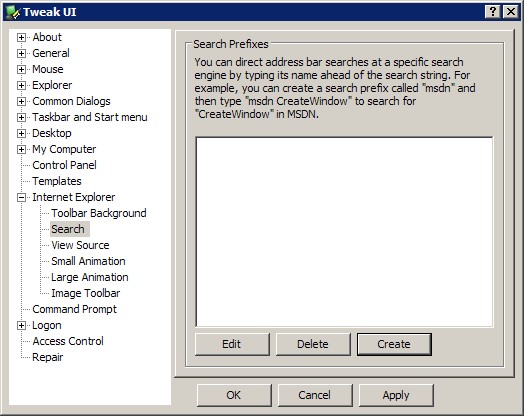
  1. Click on the small “+” sign next to Internet Explorer to expand it.
  2. Scroll down to “Search” and highlight it.


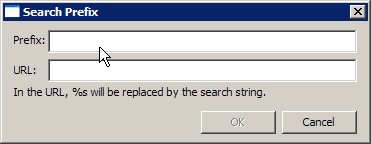
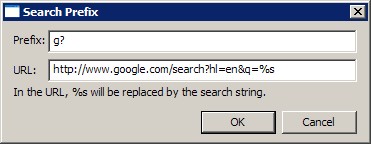
3. Click [Create], for “Prefix,” enter a nickname for your search engine. For example, my nickname for Google is “g?” (without the quotation marks). Next, for “URL.” Enter the search URL for the search engine.


For example, Google’s search URL is http://www.google.com/search?hl=en&q=%s. When you are finished, click [O.K.] > [O.K.]. I have included the search URL’s for some popular search engines.


4. Start IE. In the address bar, clear the contents. Next, type in the bar first the prefix and then the search term.


Click [Enter] and you will see the search results.


Here are the URL's for some popular search engines:
(http://www.answers.com/main/ntquery?s=%s), Yahoo! (http://search.yahoo.com/search?ei=utf-8&fr=slv8-&p=%s) and Live Search (http://search.msn.com/results.aspx?q=reddit&FORM=MSNH)